

4 November 2025
Blackboard Ultra: Ally Accessibility Checker
Creating accessible course content is central to inclusive teaching. In Blackboard Learn Ultra, the Ultra Accessibility Checker (Powered by Ally) helps you review and improve accessibility.

What it is
The Ultra Accessibility Checker is built into Learn Ultra and scans the following content in your Blackboard course:
- Images.
- Document (the tool you create; equivalent to Moodle's "Page").
- Uploaded documents.
Ally's job is identifying accessibility issues and offering explanations and fixes. It is designed to support inclusivity and meaningful engagement for diverse learners.
How it works for Instructors
In "Document"
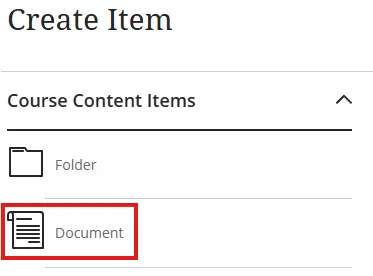
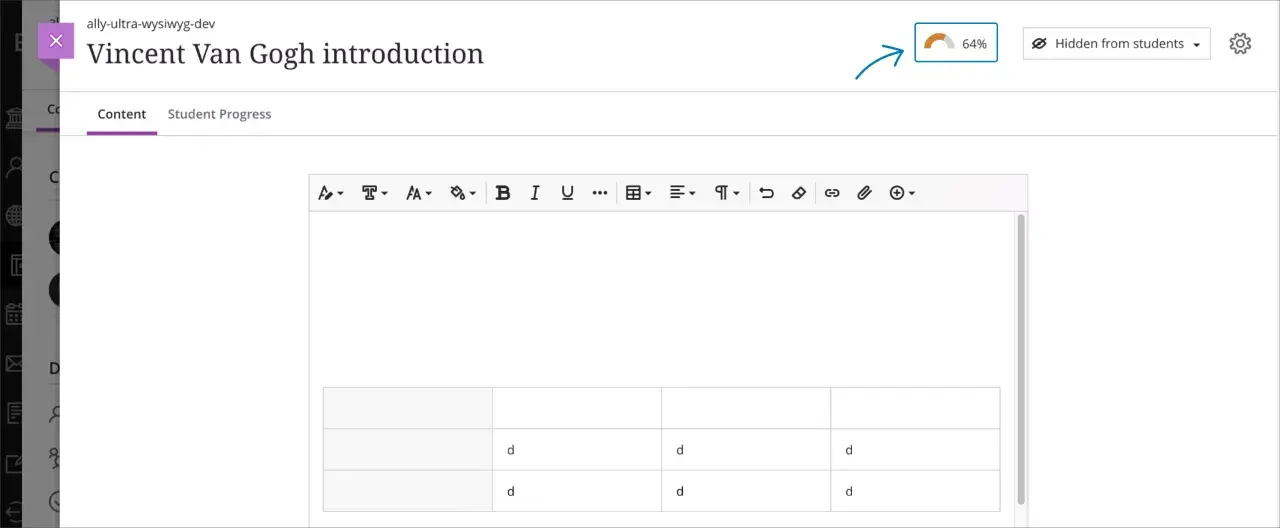
When you are actively editing an Ultra Document, a Score Gauge appears in the top-right of the page.
Selecting it opens the Instructor Feedback panel, which provides a score out of 100 (from low to perfect) along with details on issues, why they matter, and quick guidance to fix them. The Score Gauge updates live as you make corrections.
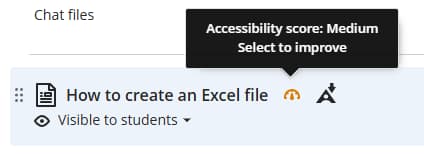
Score for Uploaded Documents
You can access the accessibility checker either by clicking on the score gauge next to a file in the Course Content area, or by clicking it while viewing a document.
Issues it can flag
The checker may identify issues such as:
-
Text with insufficient contrast.
-
Heading order problems.
-
Images without a description.
-
Images with redundant descriptions.
-
Tables without headers.
-
Tables with empty headers.
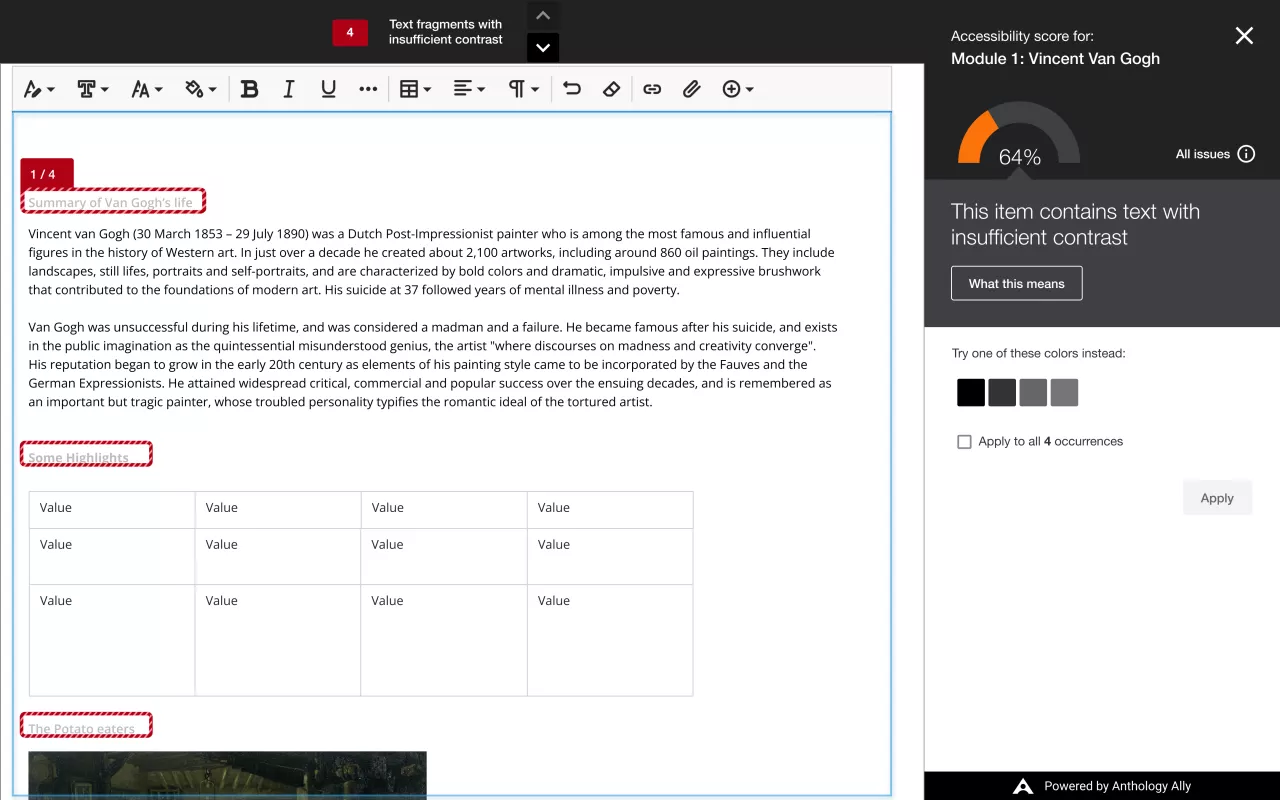
The tool guides you through one global issue at a time (e.g. all instances of insufficient text contrast in the document), and the feedback panel provides a brief “What this means” explanation plus a quick fix (such as suggested colour choices for contrast). As you apply fixes, your live score adjusts.
Please note: While some fixes can be done directly through that screen, others may require you to edit the original document and replace the one you've uploaded previously.