4 November 2025
Bringing Your Blackboard Course to Life: Simple Ways to Add Interactivity
The Gradebook is your home base for managing coursework, tracking student progress, and posting grades. Below is a concise tour of what’s there, how it’s organized, and a few pro tips to make grading faster and clearer for your students.

Where do we find the Gradebook?
From your course, select Gradebook in the top navigation. You’ll see four ways to work: Overview, Gradable Items, Grades, and Students. If anything needs attention (e.g., submissions to grade or grades to post), the tab shows an indicator so you can jump straight in.
The four Gradebook views
Overview
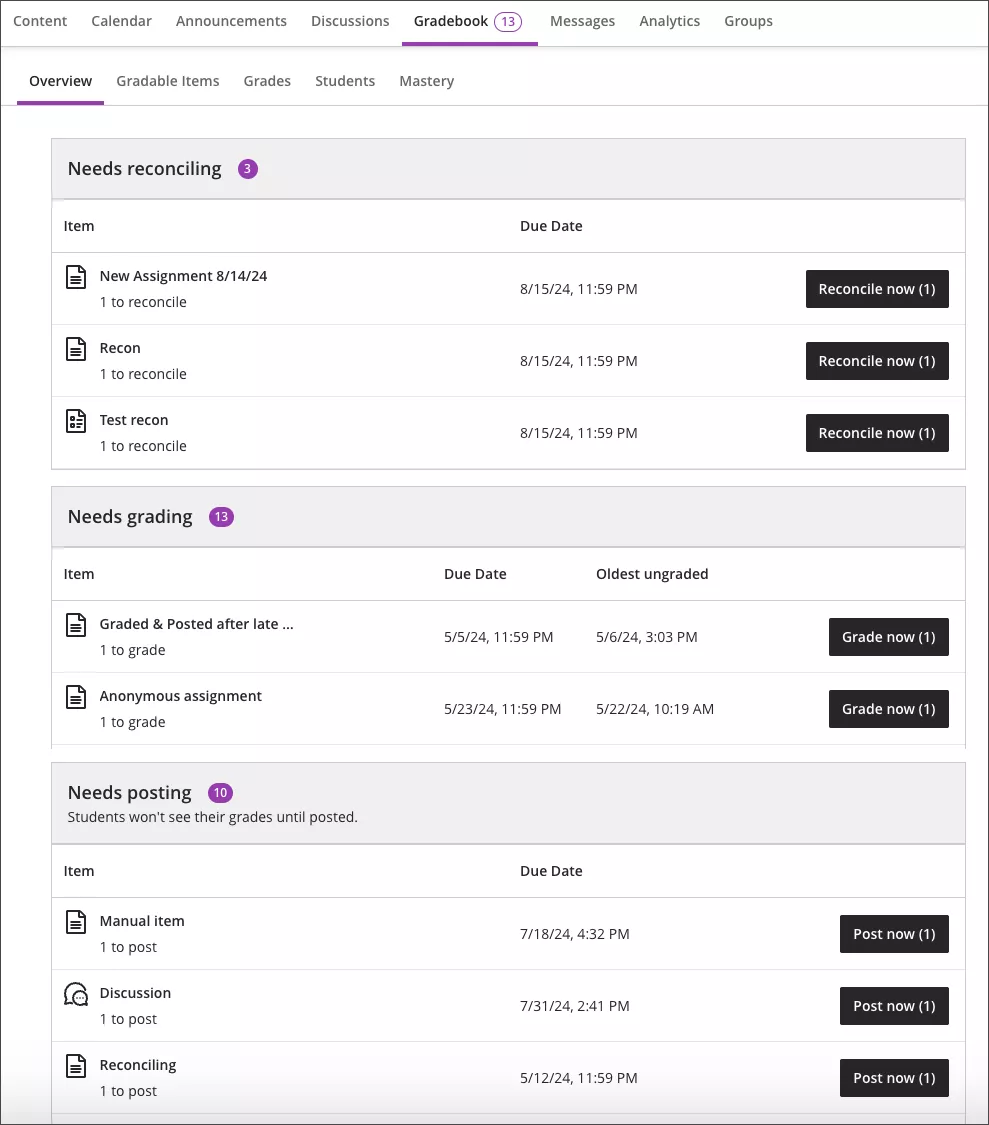
Overview groups tasks into:
- Needs reconciling (for courses using parallel grading),
- Needs grading (oldest ungraded first),
- Needs posting (graded work awaiting release).
Click directly into the item to start grading or post in one step.
Gradable Items
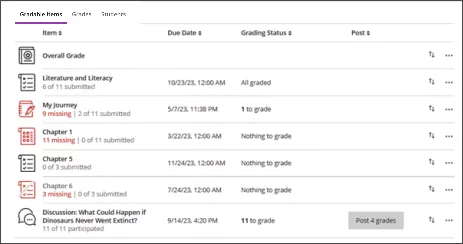
See every gradable item with due dates, categories, and status at a glance. You can drag to reorder, jump to Submissions or Grades & Participation, and post grades from here. You can also add custom text-only columns (e.g., participation notes) via + → Add Text Item; handy for qualitative information. Items with missed deadlines display in red.
Grades
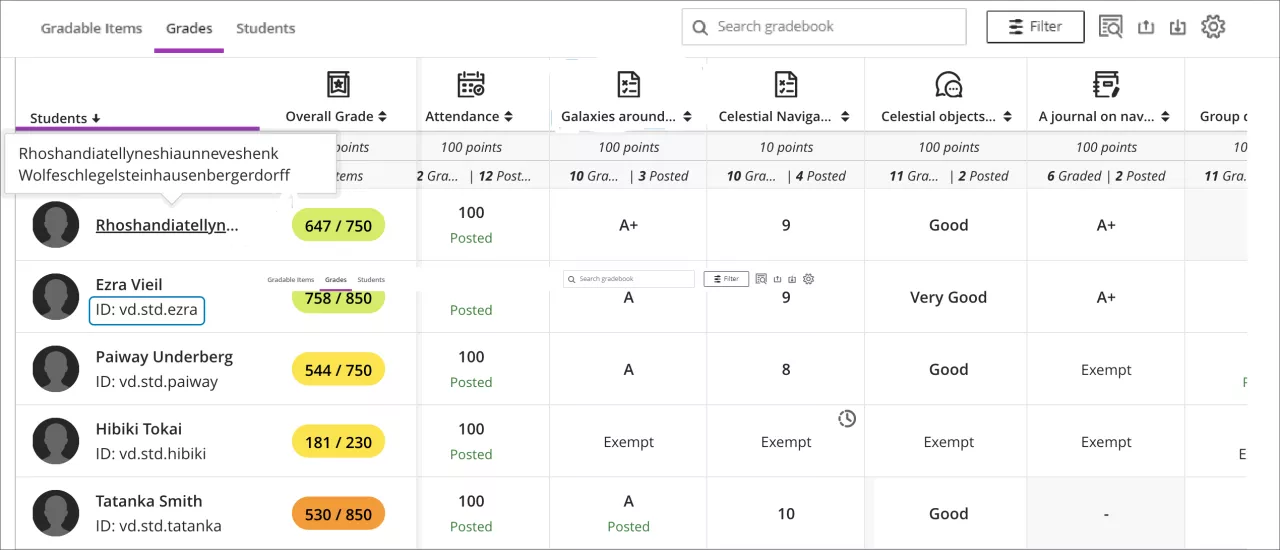
This is the spreadsheet-style grid: one student per row, one item per column. Open a cell’s menu to View the attempt, Post a grade, enter Feedback, add Exceptions (extra attempts/time), or mark Exemptions (exclude an item from a student’s overall grade).
Colour cues help: green = posted, red = automatic zeros, purple = new submissions.
Use Filter (by student, group, item, assessment type, or category) and per-column sort to focus quickly.
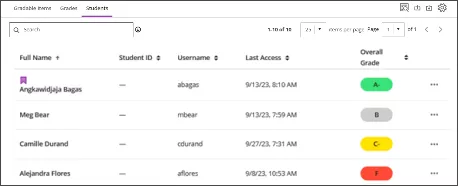
Students
List all students with last access and overall grade (if configured). A purple flag marks accommodations. From here you can message students, add accommodations, search by name/ID, and jump to each student’s overview.
Key Settings
Open Gradebook Settings (gear icon) for the controls below. Think of this as “set it once, benefit all term.”
- Grade Schemas
Map scores to letters/percentages (e.g., A–F, Pass/Fail) to match your syllabus. You can customise or create new schemas. - Overall Grade
A running, calculated grade students see throughout the term. - Automatic Zeros
Optionally assign zeros automatically when due dates pass—students can still submit (if you allow late work) and you can regrade. Applies to assignments/tests (including groups), gradable discussions/journals, SCORM, manual items. - Student Performance Alerts
Push alerts to your Activity Stream when a student is inactive for X days or when the overall grade dips below a threshold. - Student Visibility & Item Management
Hide unenrolled students from Gradebook lists to reduce clutter. - Grade Categories
Organize items (e.g., Exams, Labs, Discussions). You can add custom categories to mirror your syllabus structure.