

4 November 2025
How to Use Blackboard SafeAssign Effectively
Everything you need to know about originality reports, plagiarism checks, and student submissions

How To Use SafeAssign
SafeAssign compares student submissions against a set of academic papers to identify areas of overlap between the submitted text and existing works.
Use SafeAssign to review test submissions for originality and create opportunities to help students identify how to properly attribute sources rather than paraphrase.
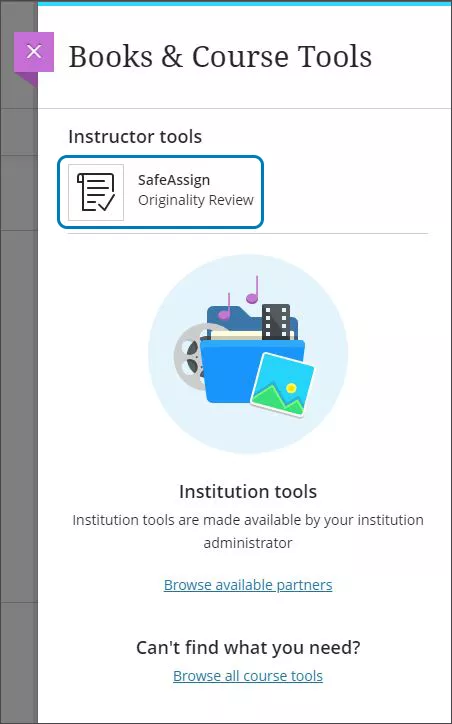
You can use SafeAssign in two ways:
- Turn on SafeAssign for an assessment. In this scenario, students submit their assignments and SafeAssign compares their submissions with a local and a global database of previously submitted and publicly available work.
- Use DirectSubmit to submit an electronic copy of paper that you suspect might contain language borrowed from other sources.
Both methods produce an Originality Report which provides detailed information about the matches found between a student's submitted work and existing sources.
Turn on SafeAssign for an assessment
You can use SafeAssign to check for potential plagiarism in student submissions for both assignments and tests in the Ultra Course View.
- From the Gradebook page of a course, add or edit an assessment. Under Assignment Settings or Test Settings, select Settings to open the panel.
- Under SafeAssign, select Enable Originality Report.
- Select Check submissions for plagiarism with SafeAssign.
- When you enable SafeAssign for the assessment, you can also allow students to view the Originality Report. If you allow multiple attempts, an Originality
- Report is generated for each attempt a student submits.
- Choose whether to exclude submissions from the institutional and Global Reference Databases.
- Select Save.

When you enable the Originality Report, an Originality column is added to the Submissions page. Scan the list to quickly determine which submissions may include plagiarized material.
You can enable the SafeAssign Originality Report any time, even after students have started their submissions, but submissions are only checked when SafeAssign is enabled. Submissions received before you enable the setting aren't checked with SafeAssign.
SafeAssign results are hidden while anonymous grading is enabled. After you post grades and names are shown, you can view the SafeAssign results and the Originality Reports.
If you want to exclude student submissions from the Institutional and Global Reference Databases, you must select Exclude submissions from the Institutional and Global Reference Databases before students submit their work. You can't remove work from the databases that was submitted before you selected the exclude option.
Multiple attachments and attempts
SafeAssign recognizes multiple attempts for an individual test as submitted by the same student for the same test. SafeAssign doesn't check the contents of the current attempt against content from previous submissions. You can view each Originality Report next to the corresponding attempt.
If a student includes more than one attachment with a test, they are listed in the Originality Report section of the SafeAssign panel. Select a file name link to view the file's text in a new window, along with detailed text matching analysis.
Watch the video above about SafeAssign. (Source: click here)