4 November 2025
Bringing Your Blackboard Course to Life: Simple Ways to Add Interactivity
Below are some practical strategies to make your Blackboard course come alive — all using features you already have access to.

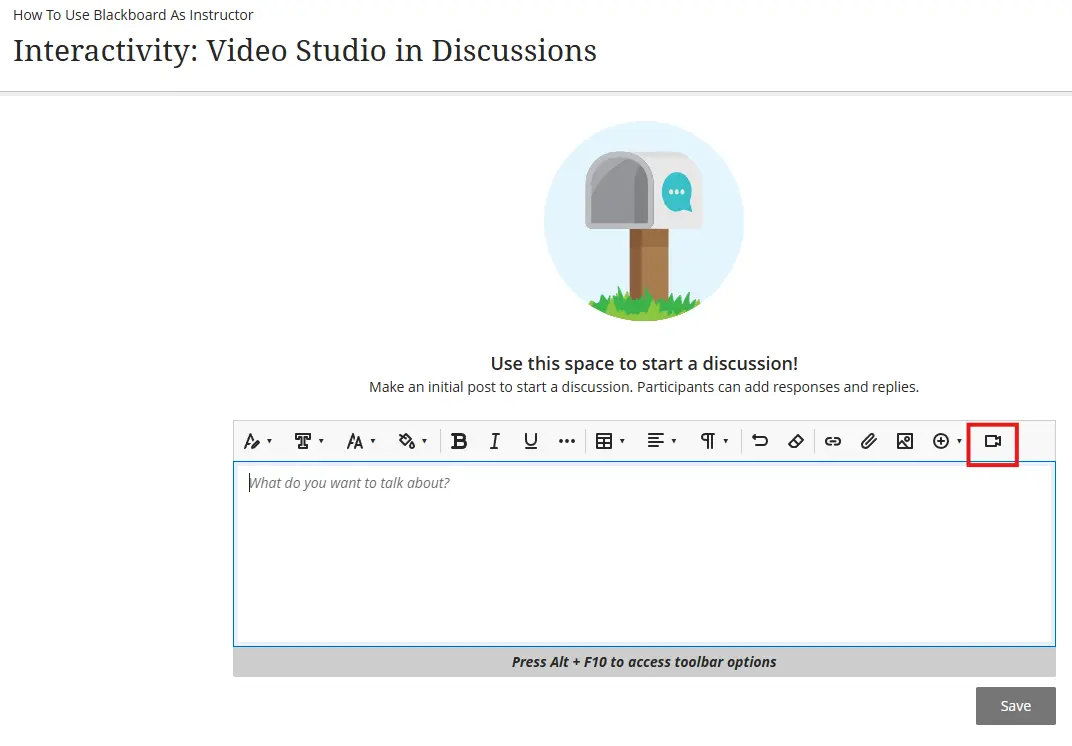
Make Discussions More Engaging with Video Studio
Text-based discussion boards are a staple of online learning, but they can sometimes feel flat. Blackboard’s Video Studio changes that by allowing you and your students to record or upload short video responses directly in discussion threads.
How to use it
- Record a quick introduction or prompt as a video to add personality and context.
- Encourage students to respond with short video reflections, debates, or presentations.
- Use video replies for peer feedback — this humanises the conversation and builds a stronger learning community.
This simple shift from text to video can transform discussions into lively, authentic conversations.
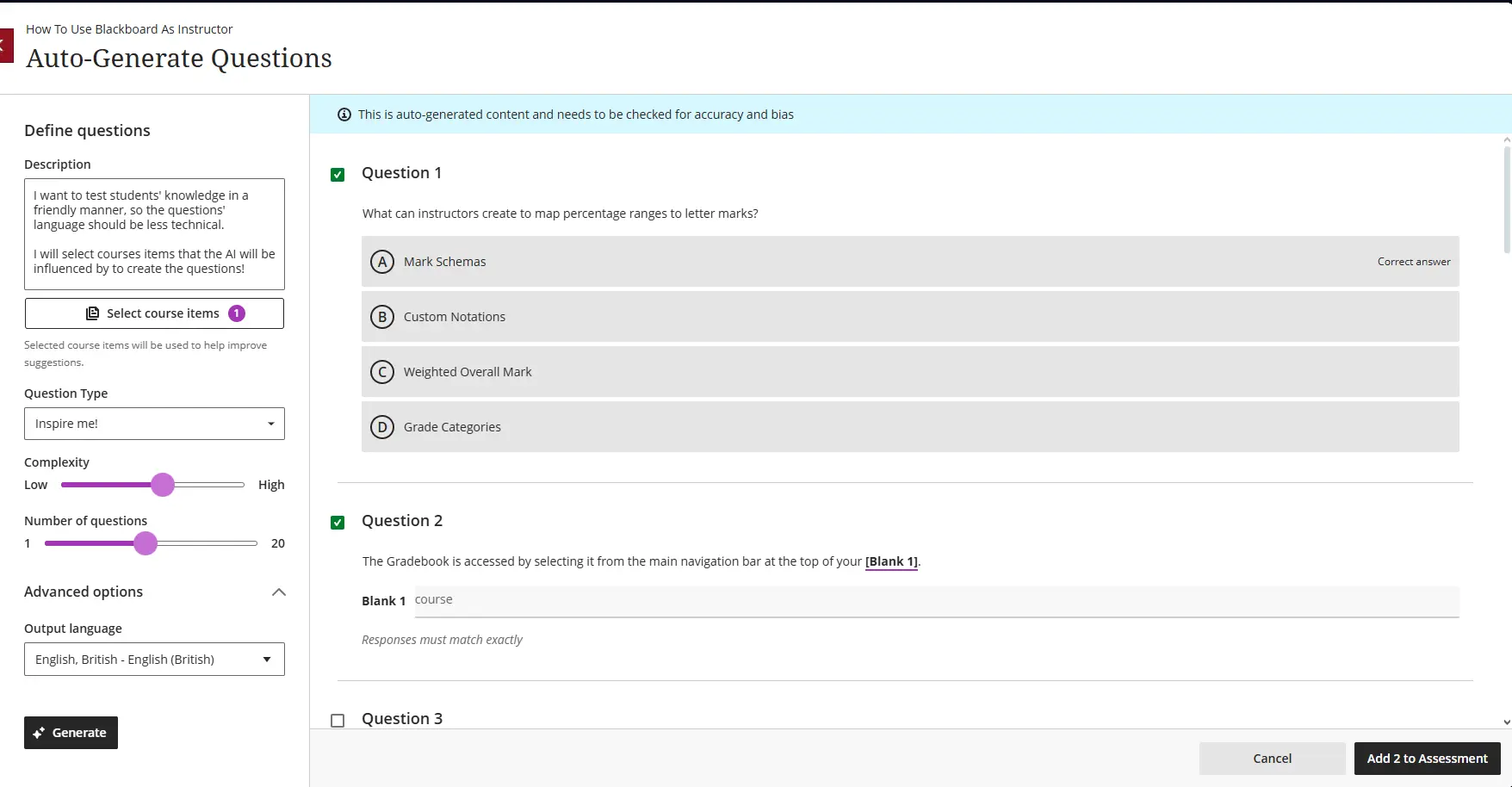
Use TEST — Auto-Generate Questions with AI
Blackboard now allows you to generate quiz questions automatically with built-in AI tools. After uploading your lecture or instructional video, let Blackboard suggest comprehension questions based on the content. This is a quick and effective way to assess understanding without hours of manual work.
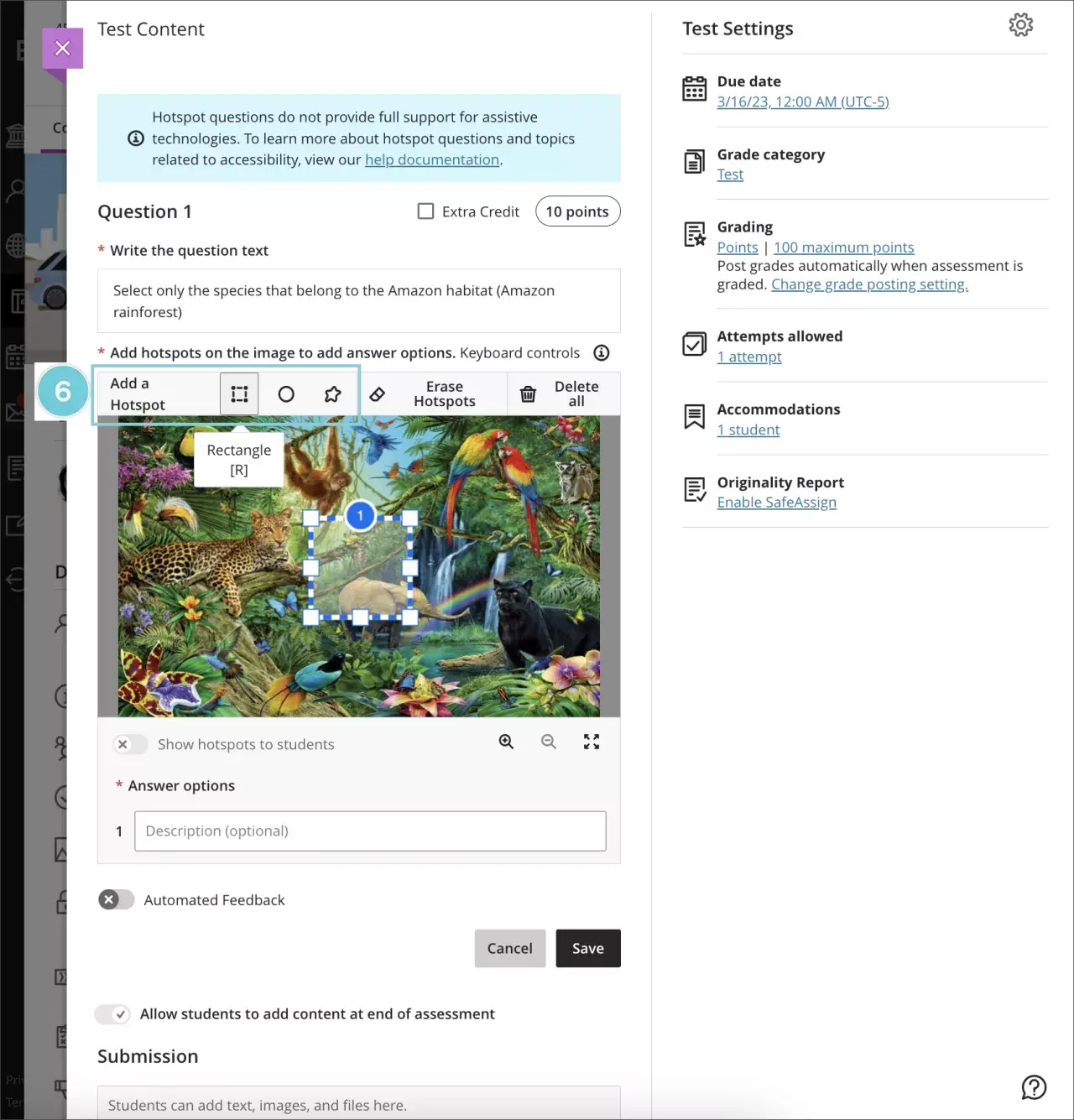
Hotspot Questions
You have a variety of options when creating a hotspot question:
- Standard Hotspot: Students drop a pin inside one or more hidden hotspots you define.
- Multiple Choice Hotspot: Students see several hotspots; one is correct and the others are distractors.
- Multiple Answer Hotspot: Students see several hotspots; one or more are correct and the rest are distractors.
Matching Questions
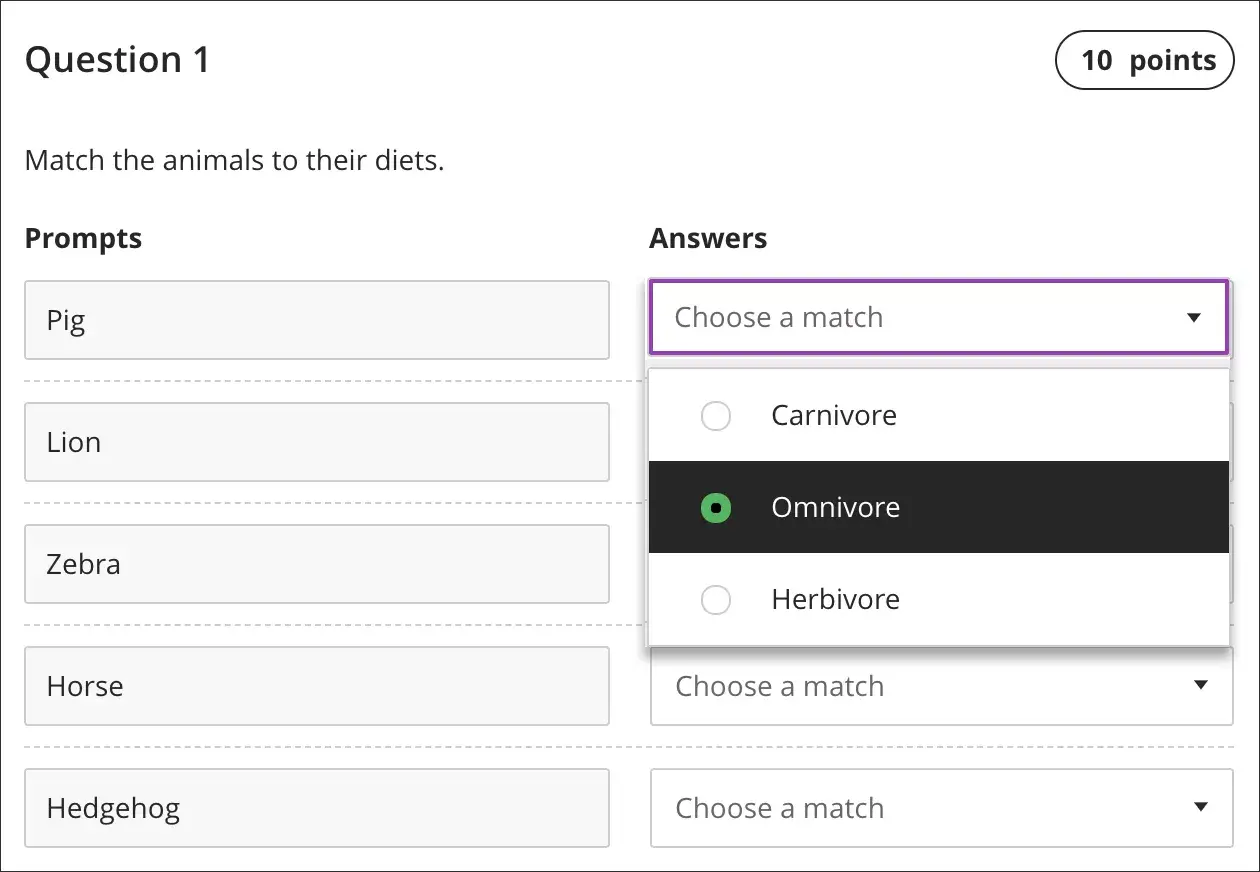
Matching questions ask students to pair related terms, concepts, or definitions. They’re great for reinforcing vocabulary, historical events and dates, or cause-and-effect relationships — all within the flow of a video or reading.
Jumbled Sentence Questions
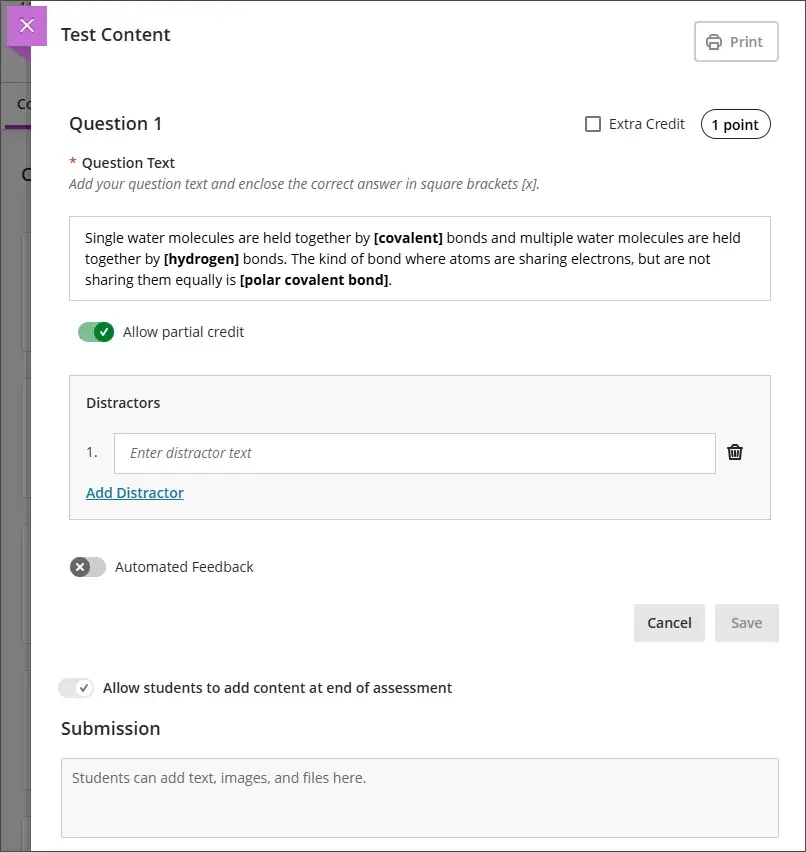
These questions challenge students to reorder words or phrases into a correct sentence or concept. It’s an excellent way to assess comprehension of key terms, grammar, or processes.
How to create one
- Go to a test, survey, or pool and choose Jumbled Sentence from Create Question.
- Add variables in square brackets; each variable is recognized as a correct answer.
- Allowed characters: letters, digits (0–9), periods (.), underscores (_), and hyphens (-). Names must be unique.
- Optionally add distractors.
- Use Allow Partial Credit, Extra Credit, and Automated Feedback as needed.
- Save to add it to the test.
Deepen Reflection and Critical Thinking with Journals
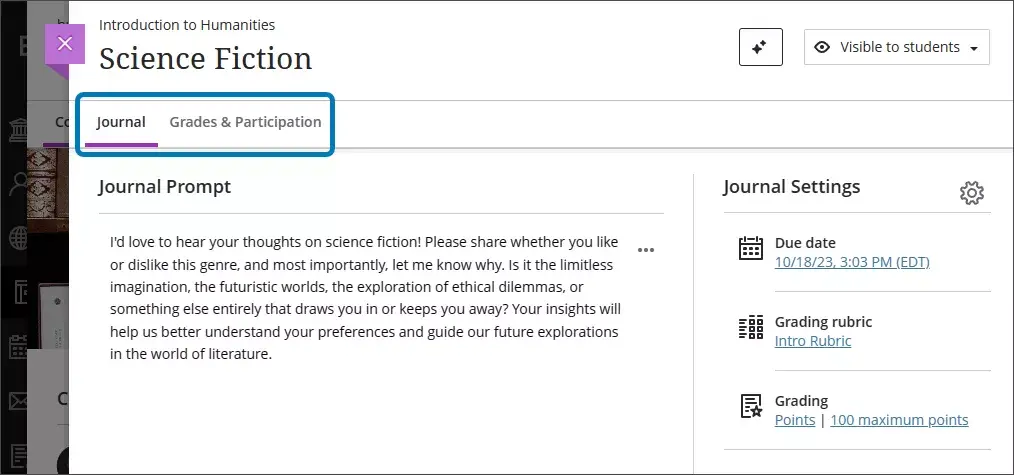
Journals give students a private space to reflect, connect theory to practice, and express ideas without the pressure of public discussion.
Ideas for use
- Weekly reflections on course content or discussions
- Ongoing project journals that track progress and challenges
- Prompt-based entries to apply concepts to real-world scenarios
Learn more: Journals (Ultra)
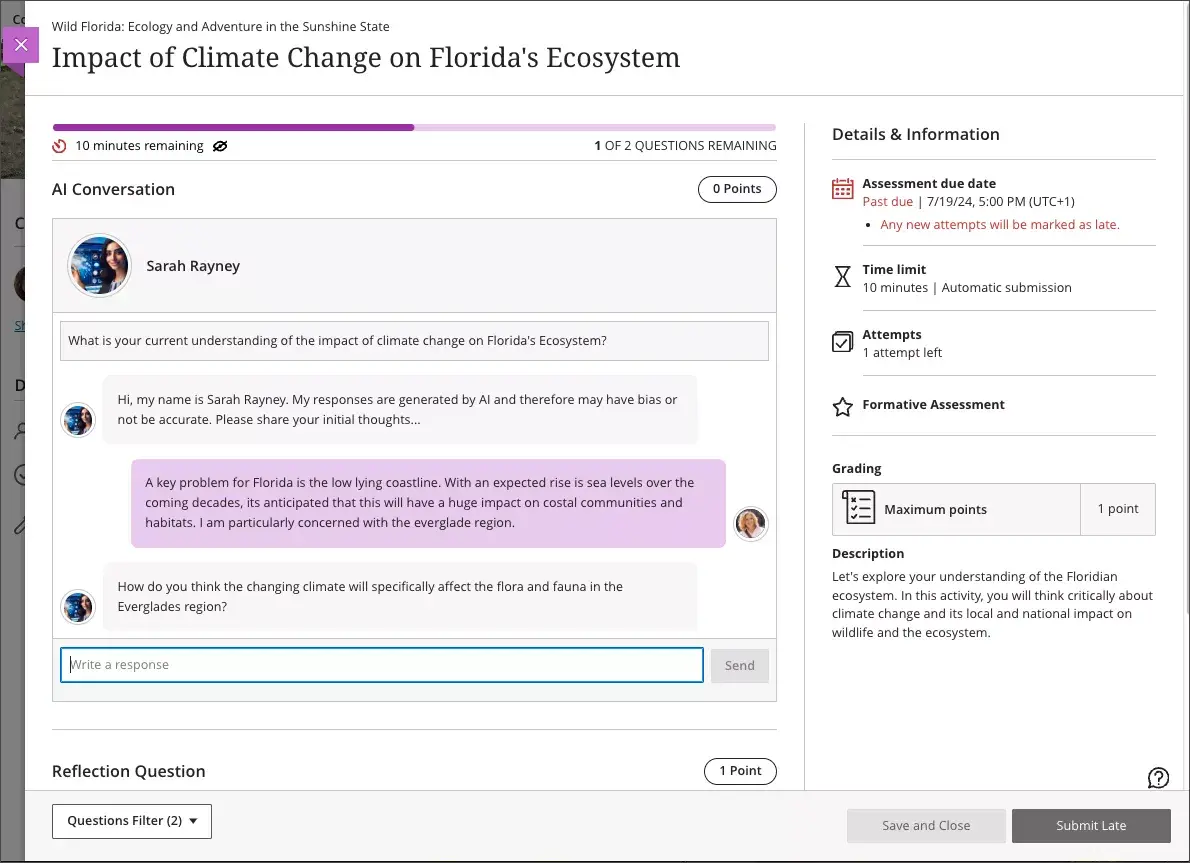
Foster Authentic Dialogue with AI Conversation
AI Conversation can spark critical thinking through dynamic, chat-based interactions. Design prompts that simulate expert interviews, case studies, or guided study sessions.
Examples
- Simulate a conversation with a historical figure to explore different perspectives.
- Build a chatbot that quizzes students on key concepts or walks them through problem-solving steps.
- Offer an “AI office hours” activity where students practice explaining ideas in their own words.
Learn more: AI Conversation (Instructor docs)